
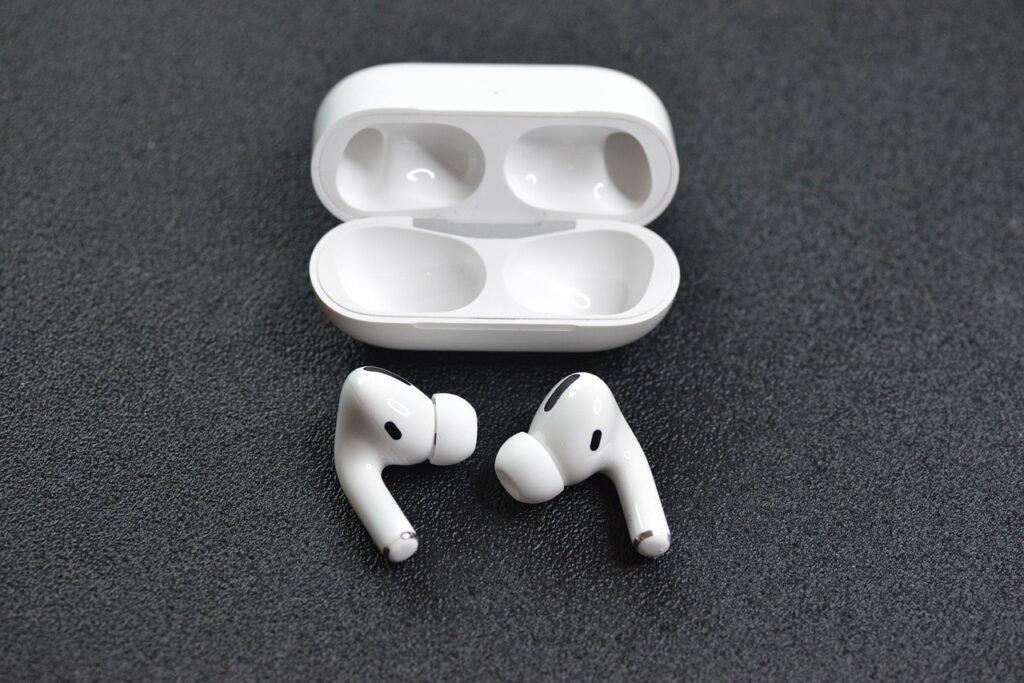
Connecting AirPods to a Mac is one of those small tech pleasures that feels almost magical when it works instantly. No cables. No drivers. Just sound flowing directly into your ears. If you are new to AirPods or just switching to macOS, this guide walks you through every method step by step, without the confusion.
Whether you are using AirPods, AirPods Pro, or AirPods Max, this article covers everything from automatic pairing to fixing annoying connection issues.
- Introduction to AirPods and Mac Compatibility
- Things to Check Before Connecting AirPods to Mac
- How to Connect AirPods to Mac Automatically
- How to Connect AirPods to Mac Manually
- Connecting AirPods Pro and AirPods Max to Mac
- How to Switch AirPods Between iPhone and Mac
- How to Set AirPods as Default Audio Output on Mac
- Fixing AirPods Not Connecting to Mac
- Common AirPods Connection Issues and Solutions
- Using AirPods for Calls and Meetings on Mac
- Optimizing AirPods Audio Quality on Mac
- Can You Connect AirPods to Multiple Macs?
- AirPods vs Other Bluetooth Headphones on Mac
- Security and Privacy When Using AirPods on Mac
- Conclusion
- FAQs
Introduction to AirPods and Mac Compatibility
Apple designed AirPods to live comfortably inside its ecosystem. Macs are no exception.
Why AirPods Work Seamlessly with Mac
AirPods are built to integrate with Apple devices using iCloud and Bluetooth. If your Mac and AirPods share the same Apple ID, they already know each other. Think of it like a shared address book for your devices.
Supported macOS Versions
Most modern Macs running macOS Sierra or later support AirPods. For features like automatic switching and spatial audio, newer versions like macOS Big Sur or later work best.
Things to Check Before Connecting AirPods to Mac
Before pairing, a few quick checks can save you frustration.
Ensure Bluetooth Is Enabled
Open System Settings > Bluetooth and make sure Bluetooth is turned on. No Bluetooth, no AirPods. Simple physics.
Check AirPods Battery Level
Low battery can cause connection drops or pairing failures. Put your AirPods in the case and make sure they are charged.
Updating macOS for Best Performance
An outdated macOS can cause weird behavior. Updating ensures better Bluetooth stability and feature support.
How to Connect AirPods to Mac Automatically
This is the easiest method and the one Apple secretly hopes you use.
Using the Same Apple ID
If your AirPods are already connected to your iPhone or iPad using the same Apple ID, your Mac will recognize them automatically.
iCloud Sync Explained
iCloud sync shares device pairing info across your Apple devices. Your Mac simply picks up the memo and connects.
To connect:
- Click the Bluetooth icon in the menu bar
- Select your AirPods
- Done
How to Connect AirPods to Mac Manually
Sometimes automatic magic needs a little human intervention.
Step-by-Step Manual Pairing Guide
- Put your AirPods in the charging case
- Open the lid
- Press and hold the setup button on the back
- Wait for the light to flash white
Putting AirPods in Pairing Mode
That flashing white light means your AirPods are discoverable. On your Mac:
- Go to System Settings > Bluetooth
- Select your AirPods
- Click Connect
Connecting AirPods Pro and AirPods Max to Mac
The process is mostly the same, with minor differences.
Differences in Connection Process
AirPods Max use a noise control button instead of a case button. Hold it until the light flashes white.
Noise Control Settings on Mac
Once connected, you can control noise cancellation and transparency mode directly from the menu bar.
How to Switch AirPods Between iPhone and Mac
Switching devices should feel smooth, not like unplugging cables in 2005.
Automatic Device Switching
With newer AirPods models, switching happens automatically when audio plays on another device.
Manual Switching Tips
If automatic switching fails:
- Click the Bluetooth icon
- Select AirPods manually
How to Set AirPods as Default Audio Output on Mac
Sometimes your Mac insists on using speakers. It needs guidance.
Changing Sound Output Settings
Go to System Settings > Sound > Output and select AirPods.
Using Control Center on macOS
Click Control Center > Sound and choose your AirPods. Faster and less annoying.
Fixing AirPods Not Connecting to Mac
When things break, they usually break quietly.
Restarting Bluetooth
Turn Bluetooth off, wait ten seconds, turn it back on. Classic tech therapy.
Resetting AirPods
- Put AirPods in case
- Hold setup button for 15 seconds
- Reconnect from scratch
Forgetting and Reconnecting AirPods
In Bluetooth settings, click the “i” next to AirPods and select Forget This Device, then reconnect.
Common AirPods Connection Issues and Solutions
Audio Lag Problems
Close unused apps and ensure no other Bluetooth devices are interfering.
One AirPod Not Working
Clean the AirPods and reset them. Dirt causes more problems than software.
Microphone Not Detected
Check System Settings > Sound > Input and manually select AirPods.
Using AirPods for Calls and Meetings on Mac
Perfect for meetings, not perfect for remembering to mute.
Setting Up Microphone Preferences
Select AirPods as both input and output device in sound settings.
AirPods with Zoom and Teams
Choose AirPods within the app’s audio settings to avoid echo or silence.
Optimizing AirPods Audio Quality on Mac
Good sound deserves proper tuning.
Adjusting Sound Preferences
Disable sound enhancements if audio sounds compressed or muffled.
Spatial Audio and Enhancements
If supported, enable Spatial Audio for a more immersive experience.
Can You Connect AirPods to Multiple Macs?
Yes, with limits.
iCloud Limitations
AirPods can sync across devices on one Apple ID. Different Apple IDs require manual pairing.
Workarounds
Manually switch using Bluetooth settings on each Mac.
AirPods vs Other Bluetooth Headphones on Mac
Why AirPods Perform Better
They connect faster, switch smarter, and integrate deeper into macOS.
Apple Ecosystem Advantage
AirPods are optimized for Apple devices. Other headphones are just visiting.
Security and Privacy When Using AirPods on Mac
Bluetooth Security Basics
AirPods use encrypted Bluetooth connections once paired.
Preventing Unauthorized Connections
Keep Bluetooth off when not in use and avoid public pairing.
Conclusion
Connecting AirPods to a Mac is usually effortless, but knowing both automatic and manual methods gives you control when things misbehave. With the right settings and a little patience, AirPods become a seamless extension of your Mac, whether you are working, calling, or just avoiding everyone around you.
FAQs
1. Why won’t my AirPods connect to my Mac automatically?
Usually due to different Apple IDs, disabled Bluetooth, or outdated macOS.
2. Can I use AirPods with an older Mac?
Yes, as long as it supports Bluetooth and runs macOS Sierra or later.
3. Do AirPods work with non-Apple apps on Mac?
Yes, they work with any app that supports audio input and output.
4. How do I stop AirPods from switching devices automatically?
Disable automatic switching in Bluetooth settings for the AirPods.
5. Are AirPods good for professional calls on Mac?
Yes, especially AirPods Pro and AirPods Max with better microphones.